
Put Brace For It on your home screen
Open it in one tap when a storm is coming. No app store needed, and it’s free.
- Pick your phone.
- Follow the 3 taps.
- Find the new icon on your home screen.
Add it to your home screen
iPhone, in Safari
-
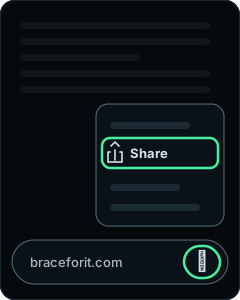
Open braceforit.com in Safari. Tap ⋯ beside the address, then tap Share.See the Share button (a square with an arrow) instead? Tap it.
-
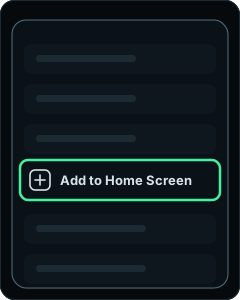
Scroll down the list. Tap Add to Home Screen.Not in the list? At the bottom, tap Edit Actions and add it.
-
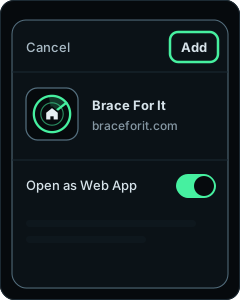
Tap Add at the top right.Leave Open as Web App on.
On iPhone, sign in once from the new icon to bring your plan.
Chrome on iPhone: tap Share at the right of the address bar, then Add to Home Screen, then Add.
Android, in Chrome
-
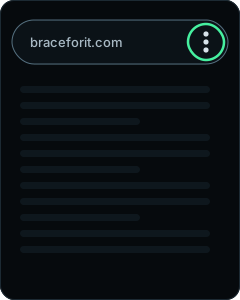
Open braceforit.com in Chrome. Tap ⋮ at the top right.
-
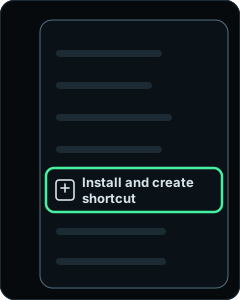
Tap Install and create shortcut.Older versions of Chrome say Add to home screen.
-
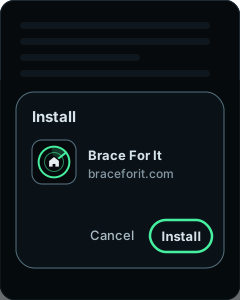
Tap Install.See Create shortcut instead? Tap it, then tap Add.

Look for this icon on your home screen. One tap opens Brace For It.
Sources
- Apple: Bookmark a website in Safari on iPhone (Add a website icon to your Home Screen), iPhone User Guide, iOS 26 and iOS 27 · checked Oct 31, 2026
- Apple: Turn a website into an app in Safari on iPhone · checked Oct 31, 2026
- Google: Use web apps, Chrome Help for Android · checked Oct 31, 2026
- Google: Create shortcuts for websites in Chrome, Chrome Help for Android · checked Oct 31, 2026
- Google: Use web apps, Chrome Help for iPhone and iPad · checked Oct 31, 2026